Showing posts with label gcp. Show all posts

Monday, July 18, 2022

Databases in Google Cloud

 We all know about different types of Databases. Just highlighting them to start off the topic.

Relational DB:

  • Fixed table schema and relations (primary and foreign key)
  • Strong transactional capability
    • Update all table data in one transaction and commit
    • Failure of one, implies rollback in all.
  • Since its strong in transactions, Relational DB is preferred for OLTP (Online transaction processing) systems like banking.
    • Lots of transactions (large number of users and small transactions per user)
  • Data is stored in row storage
  • In Google Cloud we have
    • Cloud SQL
      • Supports MySQL, SQL server and PostgreSQL
      • Regional Database
      • Multi zone for High availability
      • Can't create Global Cloud SQL DB
      • Data upto a few TB
      • Fully managed (replication, patch management, DB management etc)
      • Public IP provided to connect to the DB
      • Cloud shell option also provided in console (gcloud sql command)
        • Enable Cloud SQL Admin API as a pre-requisite
    • Cloud Spanner
      • Unlimited scale
      • Horizontal scaling
      • High availability
      • Global applications (Globally consistent)
      • Fully managed
      • Multi region
      • Option to add compute capacity when being configured
        • 1 node = 1000 processing units
        • Compute cost is the hourly cost charge for nodes or processing units.
        • Storage cost is separate and billed per GB per month
        • Min 100 processing units or 1 node

  • Can be used for Analytics as well (OLAP - Online Analytics Processing)
    • Used to analyze huge amount of data
    • Reporting, data warehouse
    • Uses columnar storage (not row) [High compression]
      • Since data is stored via columns, it can be distributed
      • Queries can run over multiple nodes (efficient execution for complex queries)
    • GCP Managed service is BigQuery
NO SQL DB: (Not only SQL)
  • Flexible schema
  • Scales horizontally
  • Highly scalable
  • High performance
  • GCP managed No SQL service:
    • Cloud Firestore (Data store)
      • Serverless
      • Document DB
      • Can run SQL like queries
      • Used for high transactions
      • Mobile and web applications
      • Small to medium DB (few TB)
    • BigTable
      • Scalable
      • Wide column DB
      • Not serverless
      • Data size > 10TB
      • Does not support multi row transaction. Supports only single row.
        • Not to be used for transactional applications
In Memory Database
  • Faster to retrieve data since data is not on the disk
  • Low latency (microseconds)
  • Persistent data stored in memory
  • Use for caching or session management
  • GCP service is Managed Store

Sunday, July 17, 2022

Google Cloud - Storage

 Let's talk a bit about storage in GCP.

Hard disks for VMs is persistent and is block storage. In GCP we call is persistent storage. (block storage)

  • As mentioned, this is similar to a hard drive of a computer.
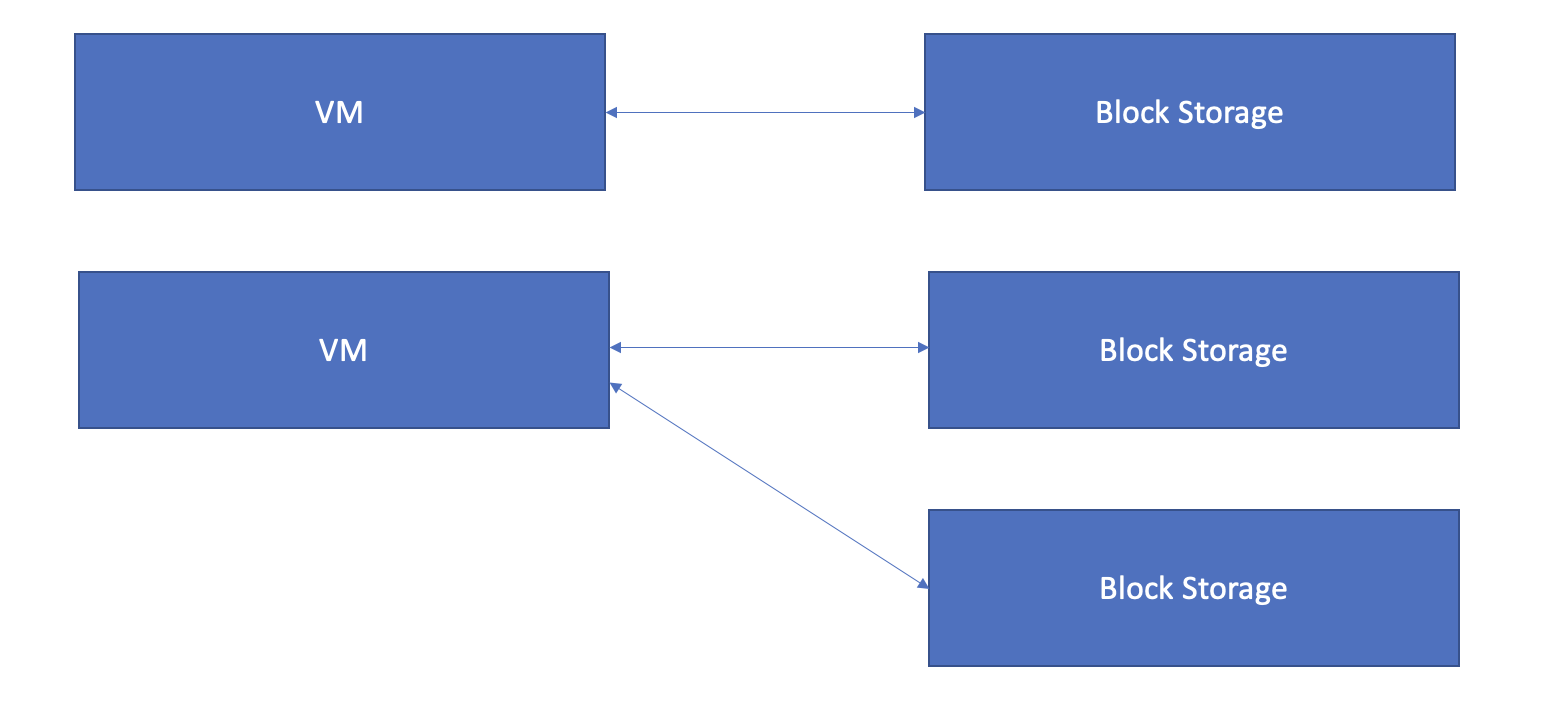
  • Only one block storage per VM. A block storage will map to one VM
  • However, one VM can have different block storages. 
  • To avoid confusion on the above statements, look at the picture below


  • Direct Attached storage is like a hard disk and Storage Area Network is like a pool of storage devices connected via a high speed network.
  • GCP provides two options
    • Persistent Disks
      • Connected to a block storage via high speed network.
      • Zonal - Data replicated in one zone
      • Regional - Data replicated in multiple zones
      • Logical to use Regional option for durability.
      • By default a 10GB boot disk (persistent) is attached to a VM when we create a VM.
    • Local SSDs
      • Local block storage.
      • Faster
      • High performance

File store is for file storage and sharing between multiple VMs.

  • Pretty logical, use file storages to store and share files across VMs.

Cloud storage in GCP is the object storage.

  • Create a container (bucket in GCP) to store objects (use console)
    • Bucket name has to be unique (globally)
    • Location type
      • Region (low latency)
      • Dual region (2 regions) [High availability and low latency across 2 regions]
      • Multi region (multiple regions) [High availability]
    • Storage class
      • Standard
        • Short term
        • Frequently accessed
      • Near line
        • Backups
        • Data accessed less than one time a month
        • Min storage duration is 1 month (30 days)
      • Cold line
        • Disaster recovery
        • Data accessed less than once a quarter
        • Min storage duration is 90 days
      • Archive
        • Long term data preservation (backup)
        • Data accessed less than once a year
        • Min storage duration is 365 days.
    • Inexpensive
    • Auto scales (as you add storage)
    • Stored as key-value pair
    • Access control at object level
    • REST API available to access and modify stored objects
    • Command line also available (gsutil command)
  • Now logically one can store any type of data in the object storage.
    • But some of these can be less frequently accessed (e.g backup files)
    • Object storage helps to optimize costs based on access needs.

I have data on premise. How do I transfer to Google cloud?
Options:
  • Online transfer:
    • Transfer to Google cloud storage via APIs or CLI (gsutil) [< 1TB]
    • Good for smaller sized transfer (not for peta byte sized data)
  • Storage Transfer:
    • Peta byte sized data
    • Setup a recurring repeating schedule
    • Can be an incremental transfer as well.
    • Fault tolerant - starts from where it failed.
    • Use when 
      • > 1TB of data
      • Transferring from different cloud
  • Transfer Appliance is physical data transfer.
    • Size > 20TB
    • Request an appliance.
    • Upload data to the appliance (e.g USB type appliance)
    • Ship the appliance
    • Google uploads to storage.
    • Data is encrypted in the appliance
    • Two appliance devices
      • TA40 (for upto 40 TB)
      • TA300 (for upto 300 TB)


Monday, July 11, 2022

Google Cloud Platform - Compute Services

 Google App Engine (GAE):

A managed service provided by GCP. Easiest way to deploy your application.

GAE helps in auto scaling, load balancing as well as health check monitoring.

In simplest terms, GAE provided end to end application management. 

A very important feature provided by GAE is traffic management (splitting) between different application versions.

Please don't be confused between GAE and Compute Engine. GAE comes under PaaS and Compute Engine under IaaS. Have a look at the diagram below (taken from google cloud via Internet) which depicts the responsibility of the owner from IaaS, PaaS and SaaS.


With Compute Engine, being IaaS, one has more flexibility but comes with more responsibility.

In GAE, being PaaS, there is less responsibility but less flexibility. It's Server-less.

Google Kubernetes Engine (GKE)

GKE is a very popular open source container orchestration tool. Its a managed service offered by GCP.

  • Provides cluster management for the VMs that one wants to deploy.
  • All these VMs can be of different types.
  • GKE provides all of the below
    • Auto scaling
    • Health check and self heal (replace)
      • Auto repair and auto upgrade
    • Load balance
    • Support for SSD disks (local) 
    • Support for persistent disks
    • Zero downtime deployments
    • Cloud Logging
    • Cloud Monitoring
  • Uses container optimized OS (from Google)
Steps:
  1. Create a new project (optional) or use an existing project
  2. Connect to the project using Cloud shell [gcloud config set project <Project ID>]
  3. In the console, go to "Kubernetes Engine" and enable the APIs.
  4. In the console, go to "Kubernetes Engine" and create "Kubernetes cluster"
    1. Cluster options
      1. Standard - User takes ownership of the cluster
      2. Auto Pilot - As the name suggests, GKE will take ownership of the cluster.
    2. Alternatively use cloud shell to create cluster [gcloud container clusters create]
  5. Connect to the cluster using Cloud shell  [gcloud container clusters get-credentials <clustername> --zone <selected zone> --project <project ID>  
    1. Get the above command from the cluster console 
  6. Deploy microservice
    1. kubectl create deployment <deployment name> --image <image name>
    2. kubectl get deployment (to see deployment details)
    3. To access this deployment, expose it externally
      1. kubectl expose deployment <deployment name> --type=LoadBalancer --port=<port#>
      2. Kubernetes service gets created from the above command
      3. To view the service
        1. kubectl get services
        2. You can see the cluster IP, External IP, Type and Name
    4. Once you have the external ID, you can connect to it 
      1. curl IP_address:port#
      2. Use the above IP to access via browser with the micro service name
  7. Scaling the deployment
    1. While connected to the cloud shell and the cluster
      1. kubectl scale deployment <deployment name> --replicas=n
      2. As mentioned in 6.2, use kubectl get deployment to get details and see if it's scaled.
      3. These instances are called as "pod"
        1. kubectl get pods to see details
      4. If we need to scale to a higher value, we need to first scale up the # of nodes in the cluster
        1. gcloud container clusters resize <cluster name> --node-pool <node pool name> --num-nodes=x --zone=<zone name>
          1. Get the node pool name from the console (go to cluster and node)
          2. Get the zone name from the console (go to cluster)
        2. The same applies when we want to reduce the # of nodes
      5. But why not auto-scale?
        1. kubectl autoscale deployment <deployment name> --max=mx_n --cpu-percent=X
        2. To see this, we need to find if the pods were autoscaled horizontally
          1. kubectl get hpa
      6. But shouldn't we auto scale cluster as well?
        1. gcloud container clusters update <cluster name> --enable-autoscaling --min-nodes=min_x --max-nodes=max_x
      7. All good? Lets also learn how to delele?
        1. Delete microservice? kubectl delete service <microservice-name>
        2. Delete deployment? kubectl delete deployment <deployment name>
        3. Delete cluster? gcloud containers clusters delete <cluster name> --zone <zone name>
But, I have a container to deploy? Is that possible?

Yes, of course. Use Google Cloud Run (GCR)

Google Cloud Run is "Container to production in seconds"
Pre-req: A container image or a repository from where new versions of containers can be picked.
  • We get options to choose from:
    • Charge for CPU usage only when a request is processed (invocation)
    • Charge for entire lifecycle of the container instance
  • Auto scaling configuration option is provided. 
  • Authentication option is also provided
GCR is built on top of KNative.

It's a server less platform for applications based on containers (No Infra management).


Monday, July 4, 2022

Google Cloud - Basics + Introduction to Compute Engine


Let's start from the basics.

Why should one move to the cloud?

The answer is simple:

  • Low Latency
  • High Availability
  • Go Global in minutes
What does the above imply?

If you application is deployed on a server, it has high latency (if accessed from all over the world) and has low availability (if there is a crash).

Cloud provides an option for users to deploy their applications over virtual servers which can be deployed over various region (and hence high availability) + accessible (low latency).

Google cloud has 24 regions (as we write) and 73 zones spread over 17 countries.

What is a Region? What is a Zone?

Region is like a data center in a location. Zones are within a Region. For Google Cloud, each region has a minimum of 3 zones.


Zone
  • High Availability + Fault Tolerance within a region.
  • Each zone has 1 or more cluster
    • Cluster is a physical hardware (within a DC)
  • Zones are connected to each other via low latency links.

How to deploy applications on Google Cloud?

Deploy Applications on VMs.

  • Deploy Multiple VMs using Instance Groups
  • Add a Load balancer 

To deploy VMs, we use the Google Compute Engine.

We use the Compute Engine to:

  • Create and manage the lifecycle of VMs
    • Lifecycle implies create, start, stop, run and delete
  • For multiple VMs, deploy a Load Balancer
  • For multiple VMs, configure Auto Scaling.
  • Attaching Storage to a VM
  • Attaching Network connectivity like IP address (static) and configurations of VMs (like the HW etc)
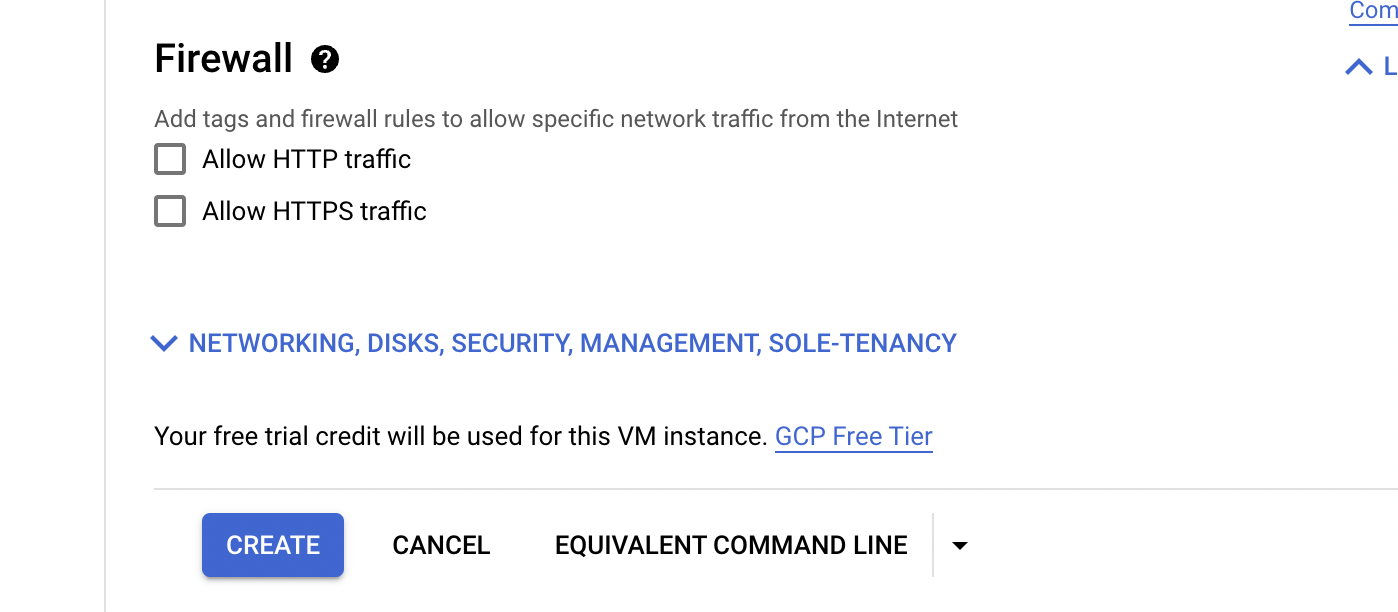
See below pics on how to start a VM (for beginners).

Configuring/Creating a VM:


Note that every VM has:
  • An internal IP (which is fixed and never changes)
  • An external IP 
    • Used to access from external network
    • This IP is ephemeral (implies once we restart the VM, the IP changes)
      • How can then one access the VM if IP keeps changing?
        • Use a static IP. (Its a permanent external IP)
          • Note: Static IP is charged even when not in use.
Isn't creating VMs manually very tedious?

Yes!! Especially if you want to create large # of VMs.

Thus, one can use
  • Startup scripts
    • Scripts to be run on startup.
  • Instance template 
    • As the name suggests, it's a template which will have all the configurations one needs in a VM.
    • Note: One cannot update an instance. You would need to create a copy and edit/modify. 
    • You can then launch VMs using an Instance Template.
  • Custom Image with OS packages and softwares installed
    • Every time we create a VM instance, OS patches and softwares need to be installed.
    • This issue is eliminated by using a Custom Image (which has the OS and SW pre-installed)
    •  Create an instance template to use a custom image.

Pre-emptible VMs:

If your application:
  • Does not need VMs immediately (batch jobs)
  • Are Fault Tolerant (can be restarted anytime)
one can opt for pre-emptive VMs. These are similar to On-Spot VMs in AWS.
Very very cost effective.

They can be shut down at any time by giving a 30 sec warning by Google Cloud.
Note: They cannot be restarted.

They are used to save costs and for applications where there is no immediate need for a VM.

But what if cost is not the important criteria but one has constraints like No shared Host for a VM?

We all know that on a single host in the cloud, if we have multiple VMs hosted, these VMs could belong to different folks. Such shared hosts reduce costs. However, there may be a requirement to use a dedicated host. Note that the default config is shared.

What is a dedicated host?
A host where all the deployed VMs belong to a certain company/individual etc.

How is this achieved?
By creating VMs on dedicated host (with Sole Tenant Nodes)


Read the definition of sole tenant nodes in the picture below (taken from the console)


But what if we do not like the VM machine types being offered? What if my requirements are different (read: higher) and of course when budget is not an issue.
There is an option for customized machine types where you can choose the memory, GBU and vCPUs.
Only valid for E2, N2 and N1 machine types.
Billing is based on per vCPU and memory provisioned. (hourly charges)

We discussed about creating VMs and machine types etc.

We also know that we can create a group of VM instances by using an Instance group.
Instance Groups are classified as "Managed" and "UnManaged"

Managed Instance Groups (MIG) manage similar instances of VMs (identical using templates). Auto scaling, Automatic removal and replacement of VM due to its health etc are some of the features for MIG.

Note - 
. Instance template is mandatory and create instance groups using it.
. Default auto scaling used is CPU Utilization (60%)
 
UnManaged Instance Group as the name suggests, manages different configuration of VMs and the features like auto scaling etc are not available.

We now have multiple VM instances created using an instance templated and part of an instance group (managed). We also have an auto scaling + health policy in place. What are we missing? Traffic handling aka Load Balancer (Global > distributes load across VMs in different regions).

Go to Network Services > Load Balancing.


Load Balancing options: